A friend of mine had a problem recently with the calendar view and a custom list. Basically, he created a custom list, with “dstart” and “dend” Date and Time fields, which both had the format set to “Date only”. Now, he created a calendar view for that list, and the calendar bar never included the “dend” date – the bar always finished one day before the “dend” date.
Now, obviously, this was not the result he has wished.
The problem is following: internally, even if you choose the “Date only” format, it is the same data type as with “date & time” format, and SharePoint appends the 12:00 time to the date value. Since it’s midday – it never reaches the end of the day, and the calendar bar does not include the end date. This is not what we want.
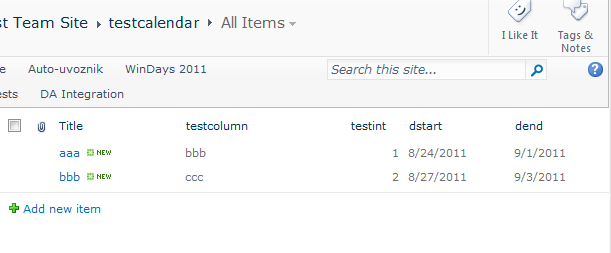

Well, since there is no solution out of the box for this problem, we need to do some trickery work, to solve this problem.
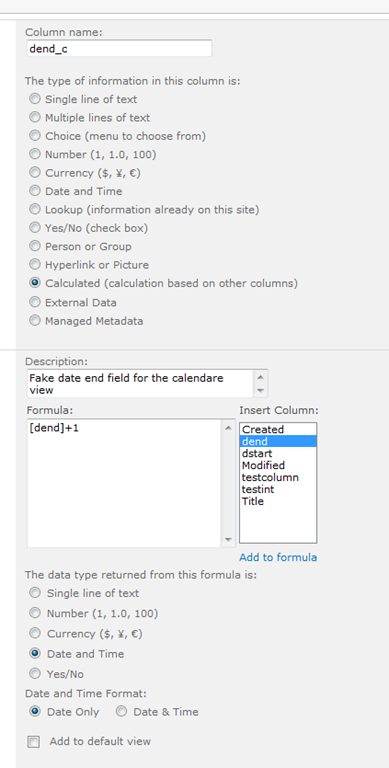
First of all, create a calculated field, of the date and time type, where you add a day to the end date. Don’t include that field in any of the default views.
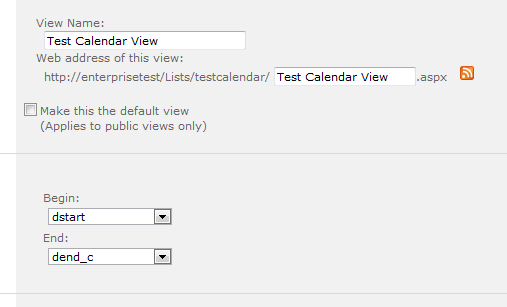
Second change the Calendar View, to include the new field as the end date, instead of the original “dend” field:
Third, open the SharePoint Manager, and make the new calculated field “hidden”. You don’t want your end users to play with this field:
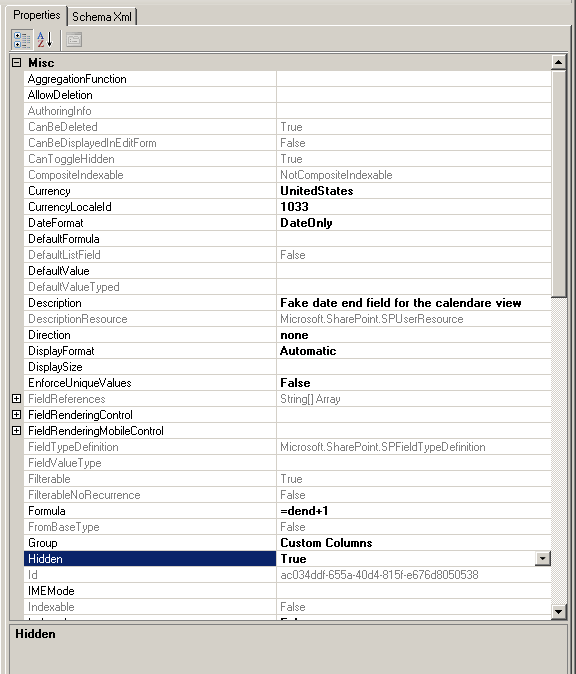
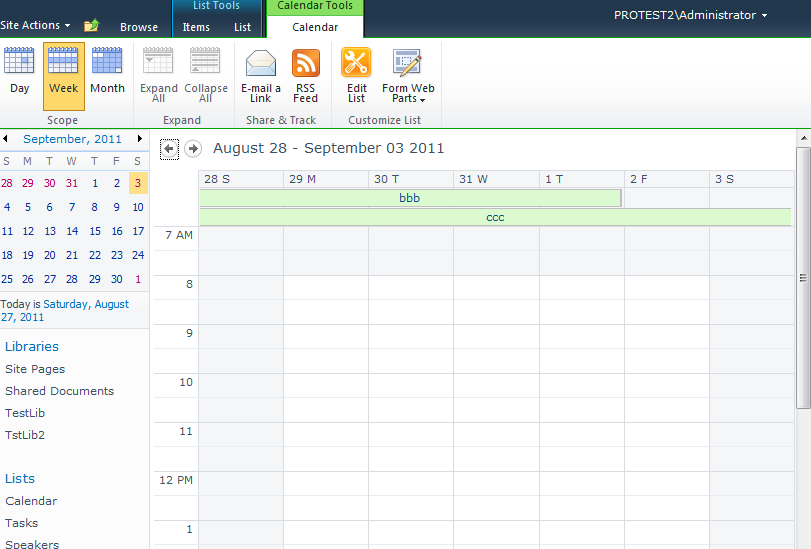
And voila, this is the result:
- You have your bars in the calendar view looking as they should look like
- Your end users don’t even notice there is a trickery in the game and they work further with the original “dend” field.

You only have to pay the attention, if you ever change the format of the “dend” field to “date and time”, you need to change the calendar view’s end date back to the original “dend” field, since the time part will not be displayed correct (will be displayed with one day too much) in that case…